TikTok LIVE setup
A vertical stream with more room for your ideas.
Design your portrait scene on your computer, prepare reactions to gifts and follows, and choose an output route your account supports. AnimStream organizes the show; platform access still comes from TikTok.
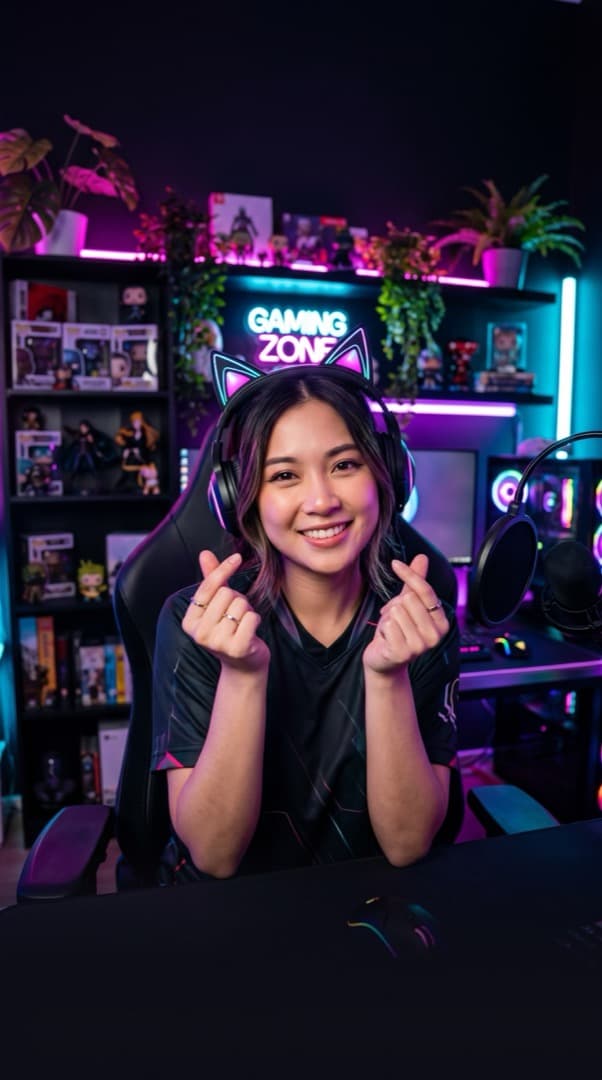
Design for a phone, not a cropped desktop
Start with a 9:16 scene. Keep your face and the main action clear, leave room for platform controls, and preview text at a phone-sized scale. Portrait animation assets can complement the layout, but always preview how much of the scene they cover.
Choose your broadcast route
If your account has the necessary server URL and stream key, configure the RTMP destination in Studio. Otherwise, a compatible AnimStream Cam workflow can feed the composed picture to streaming software such as TikTok LIVE Studio. Check camera availability on your operating system and configure the audio route separately — a camera picture alone does not prove the audio is being sent.
Turn supported events into reactions
Connect TikTok events in Studio and create a trigger for the gift, follow or action you want. Choose the animation or widget behavior, test it, and confirm it appears in the scene you will actually send. Connecting events does not grant RTMP access or start your stream.
Test a complete moment
Before going live, check portrait framing, microphone level, alert volume and the finished output. Avoid repeated triggers overwhelming your voice or covering the camera. Start with a few clear interactions and expand the setup after a successful test.